
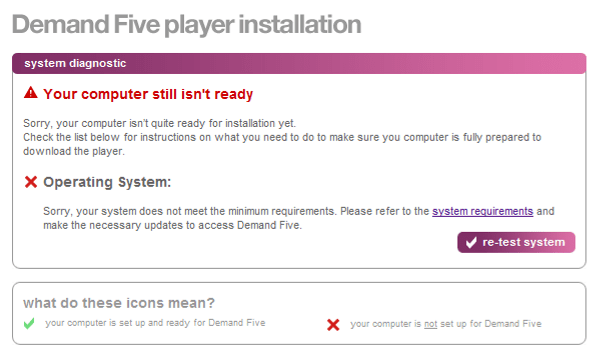
Demand Five is Channel Five’s online TV player, and it claims not to work on Windows 7 when you want to purchase a program to download/watch. When you try and buy the programs, the website does a check for “system requirements” and if you are running Windows 7, this will fail, like in Screenshot 1. I have found a way around this, and was able to purchase my program and watch it on my Windows 7 laptop.
Disclaimer: if this doesn’t work for you, please don’t blame me. Your purchase is tied to your account, so if you log into a Windows XP/Vista machine, you will be able to download your program (and not pay twice).
You will need:
- Firefox (download)
- Internet Explorer 8 (download)
- The latest Windows Media Player (download)
- The Firefox plug-in Firebug (download)
Go to the Demand Five website in Firefox, and proceed with picking your programs and buying them. You will get to the screen like in Screenshot 1, and the website will not allow you to proceed. Luckily, Five does their validation client-side in JavaScript, which means using the Firebug plug-in you can edit the values it is validating and circumvent the checks.
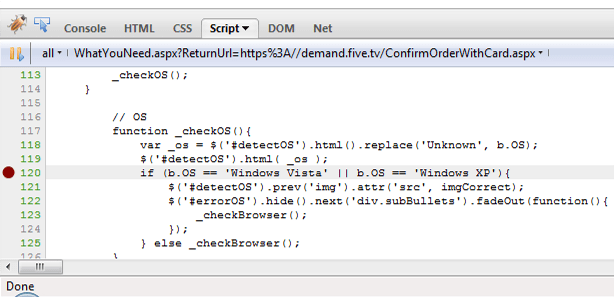
Firebug has a little bug icon at the bottom-right of Firefox which you should click on. This will bring up a Firebug console. Reload the Demand Five page, and then click on the Script tab in Firebug. Scroll down until you get to line 120, and press just to the left of the line number, which should produce a red dot. This should look like Screenshot 2.
This will pause the JavaScript on the webpage. You can now change the value that gets passed in! Go to the DOM tab, and scroll down until you see a bold b on the left hand side. Click the plus sign, and you should see something like Screenshot 3.
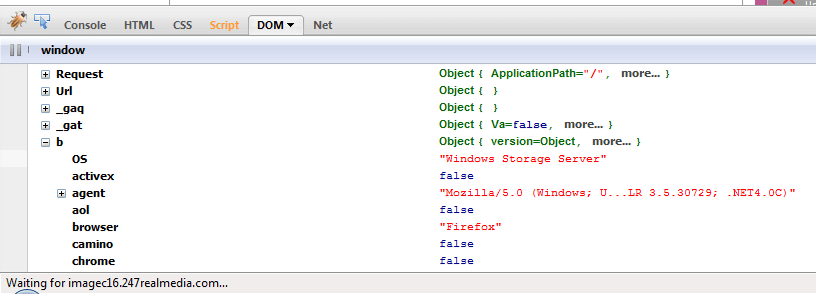
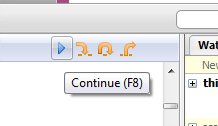
Double click on the text in red with the label OS, and change this to “Windows Vista” with quotes. Now you can press the blue play button in the top-right of Firebug (Screenshot 4).
Voila! You can now proceed. You may have to do this a few times if they redirect you back to this page, but eventually you will be allowed to pay for the downloads. When you are finally on the page where you can click your downloads to actually download/play them, move to Internet Explorer, otherwise odd error alerts appear and the downloads never happen. Just copy and paste the URL into IE8 and proceed with the downloads. Accept all the ActiveX things the site wants to install.
Happy TV watching! Many thanks to Steven for coming up with this ingenious get-around 🙂

 Lowmanio